
Why is My Tellspin Schedule Preview Incorrect?
Symptom: the Preview Looks Wrong
You open Tellspin in Slack and the preview under a schedule shows stale dates, the wrong person on-call, or doesn't reflect a change you just made.
Work through the causes below in order; the first two are by far the most common.
Cause 1: You're Looking at a Stale App Home
Slack renders the Tellspin Home tab when you open it and doesn't always redraw it while it's on screen. Reopen it to force a fresh render:
In the Slack sidebar, click + next to Apps (Browse apps) and choose Tellspin, or click the Tellspin app and use Go to App.
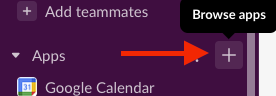
Browse apps button next to Apps in the Slack sidebar 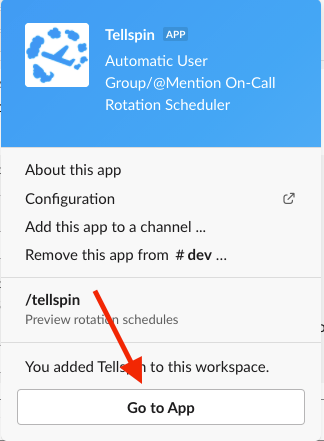
Tellspin app panel showing the /tellspin command and the Go to App button Switch to another tab (Messages or About) and back to Home.
If it still looks stale, reload Slack itself with
Cmd+R(Mac) orCtrl+R(Windows/Linux).


You can also preview schedules without the App Home by typing /tellspin in any channel.
Cause 2: You're Viewing from a Different Timezone
Previews are rendered in your Slack timezone, not the schedule's. A midnight handoff in the schedule's timezone shows up as 23:00 – 22:59 for a viewer one hour behind, and a shift may appear to start on the "wrong" date. This is expected. See how timezones work in Tellspin.
Cause 3: An Override Is Active
If an unexpected person is on-call, look at the Overrides list under the schedule's preview. Shifts affected by an override are marked (override). Remove the override if it's no longer wanted. See how to use schedule overrides.
Cause 4: A Change Wasn't Saved
If you closed the Edit modal without clicking Save, nothing changed. Open Edit again, reapply the change, and save. The preview updates as soon as the save completes.
Cause 5: Participants Were Changed Mid-Rotation
Adding or removing people shifts everyone after them, which can make the preview look like it "jumped". Open Edit → Edit Users and use Rotate Preview to align the rotation with the shift that should be current, then save.
Verifying Who Is Really On-Call
Mention the schedule's handle (for example @dev-on-call) in a channel. The person Slack expands the mention to is the current on-call user, regardless of what a cached preview shows. If that person is also wrong, the schedule itself needs attention; see how to edit an existing schedule.
Related
- Fixing schedule overrides not working
- App Views for filtering to the schedules you care about