How to Connect Tellspin to Datadog
How the Datadog Integration Works
When you link a Datadog On-Call schedule, Datadog stays the source of truth for the rotation. Tellspin reads who is currently on-call and keeps a Slack contact method (usually a user group such as @dev-on-call) pointed at that person. Tellspin re-syncs every minute, so handoffs and Datadog overrides show up in Slack almost immediately.
This gives your team a non-incident way to reach the on-call engineer without opening Datadog.
Step 1: Connect Datadog
Open the Tellspin App Home in Slack.
Under Choose an option to get started, click Datadog Connect. After keys are saved, this button is labelled New Datadog Link.
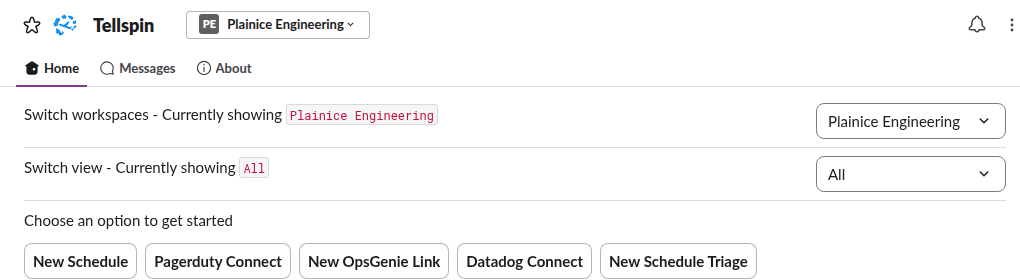
Tellspin App Home with New Schedule, Pagerduty Connect, New OpsGenie Link, Datadog Connect, and New Schedule Triage If this is the first Datadog link in your workspace, the Datadog Connect modal asks for keys. Tellspin only needs read access to On-Call schedules.
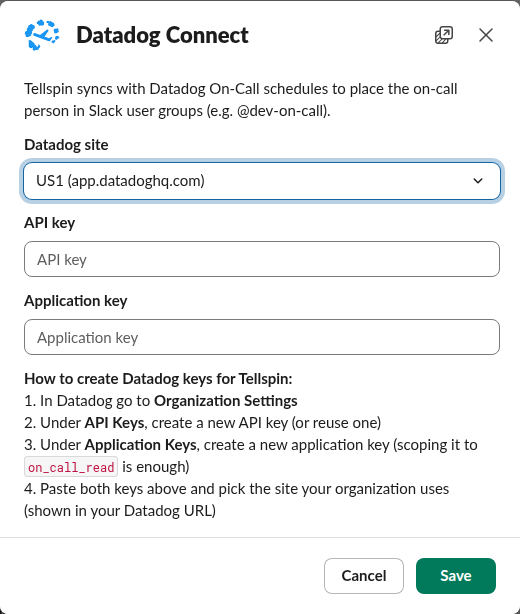
Datadog Connect modal with Datadog site, API key, and Application key fields - Set Datadog site to the region in your Datadog URL (for example US1 (app.datadoghq.com) or US5 (us5.datadoghq.com)).
- In Datadog go to Organization Settings.
- Under API Keys, create a new API key (or reuse one).
- Under Application Keys, create a new application key. Scoping it to
on_call_readis enough. - Paste both keys into API key and Application key, then click Save.


The site must match the hostname you use in the browser. app.datadoghq.com is US1; us5.datadoghq.com is US5; app.datadoghq.eu is EU.
Step 2: Paste the Datadog Schedule
Click New Datadog Link. In the Select schedule modal, paste the schedule's URL or ID under Datadog schedule URL or ID, then click Next.

Open the schedule in Datadog (On-Call → Schedules) and copy the link from the address bar. A URL such as https://app.datadoghq.com/on-call/schedules/<id> works; so does the UUID by itself.
Datadog does not expose a list of schedules to the API, so Tellspin cannot offer a dropdown. Paste the link from the Datadog UI instead.
Step 3: Map Users
In the Map Users modal, match each Datadog user to their Slack account. Matches by email are pre-filled. Anyone whose email differs between the two tools has to be mapped by hand. Click Next.
If the schedule has no members yet, add people to a layer in Datadog, then map them later from Edit.
Step 4: Choose the Contact Method
In the Choose contact method modal, pick how people will reach the on-call person:
- User Group – enter a Handle name such as
dev-on-call. Tellspin creates and manages@dev-on-call, keeping exactly one member in it: the current on-call user. - Keyword or Channel – use these if you don't have permission to create Slack user groups, or if you need the schedule in a Slack Connect channel. See Contact Methods.

Optionally click Add Reminder under Additional Options to announce the on-call person in a channel. Datadog-synced reminders default to When a Datadog shift begins. Then click Create.
Step 5: Check the User Mapping Later
After the schedule is created, open it in the App Home, choose Edit from the overflow menu, and use Change User Mappings → Edit Users to confirm every Datadog user is linked to the right Slack account.
What You'll See in the App Home
The linked schedule appears with its Handle, current On-call user, the Datadog sync schedule name, upcoming shifts pulled from Datadog, and a Syncs with Datadog On-Call every minute note.
If the keys are revoked or the site is wrong, click Datadog Connect again and paste a new API key and application key. Synced schedules keep their last known on-call until the next successful sync.