
How to Configure a Weekdays-Only On-Call Rotation
Use Case: Business Hours On-Call
Many teams only need someone on-call Monday through Friday. Tellspin can deactivate a schedule over the weekend so that the Friday shift ends on Friday, nobody is on-call Saturday or Sunday, and the next shift starts on Monday.
This is a good fit for teams that don't offer weekend coverage, or that run a separate weekends-only schedule.
Steps to Create a Weekday Schedule
From the Tellspin App Home, click New Schedule (or Edit an existing schedule).
Under When do you want to rotate?, set Rotation frequency to Daily (or Weekly if one person covers the whole week).
Set the Rotation hour to the time of day the handoff should happen, for example
09:00.Under Customization (optional), check Deactivate on weekends.
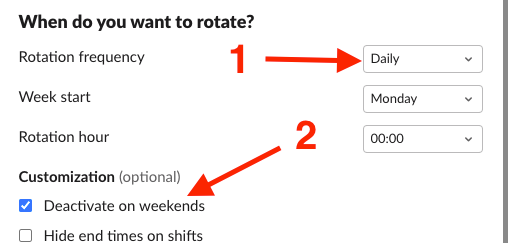
Rotation frequency set to Daily with Deactivate on weekends checked Add your participants and save.

Only Deactivate on weekends makes the schedule inactive on Saturday and Sunday. Frequencies that simply skip weekend handoffs leave the Friday person on-call until Monday.
What Happens on the Weekend
While the schedule is deactivated:
- The App Home preview shows Disabled on weekends and lists Saturday and Sunday as
disabled. - Nobody is on-call, so the schedule's user group has no members. Slack does not allow empty user groups, so Tellspin disables the group until Monday's shift starts.
- Reminders tied to a shift are not sent.
Verifying the Schedule Preview
Check the preview under the schedule in the App Home. You should see shifts Monday through Friday, weekend rows marked disabled, and the rotation continuing with the next person on Monday.
Combining with a Weekends-Only Schedule for 24/7 Coverage
Create a separate weekends-only schedule for your after-hours team, then merge both into a single handle with Schedule Triage. The combined handle always contains whoever is on-call, whether it's a weekday or the weekend.
Related
- Creating Advanced Schedules for hourly and other custom rotations
- How timezones work in Tellspin schedules