
How to Use Schedule Overrides
What is a Schedule Override?
An override temporarily replaces whoever is on-call with someone else for a shift or a date range. Use it for vacation, sick days, or one-off swaps without changing the underlying rotation. When the override ends, the normal rotation resumes.
While an override is active, the schedule's user group, keyword or channel forwarding, and reminders all point at the override person.
Who Can Create an Override
Schedule creators, Rotation Managers, and Slack admins can always create overrides. Participants can create their own overrides if Allow users to schedule their own overrides is checked under the schedule's Customization (optional) settings.
Creating an Override for an Upcoming Shift
Open the Tellspin App Home in Slack and find the schedule.
Open the schedule's override action to get the Schedule an Override modal.
Under This Week, pick the shift you want to cover. The modal shows the Selected shift and an Override preview of the result.
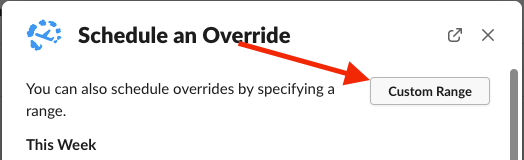
Schedule an Override modal with a Custom Range button above the list of this week's shifts Fill in the override:
- Override to – the person who will be on-call instead.
- Override Start Date – defaults to today.
- Override End Date (optional) – leave empty to cover a single shift.
- Duration – how long the override lasts, from a few minutes up to the full shift.
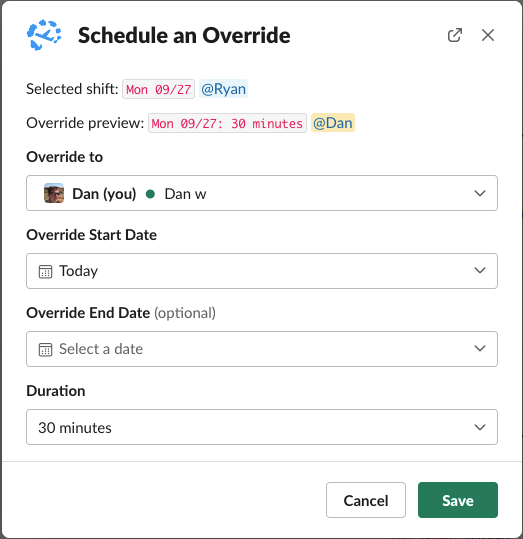
Schedule an Override form with Override to, start and end dates, and Duration fields Click Save.


Creating an Override for a Custom Date Range
For a multi-day absence, click Custom Range at the top of the Schedule an Override modal instead of picking a single shift, then set the Override Start Date, Override End Date, and the person covering. Every shift inside the range is assigned to them.
Override times are interpreted in the schedule's timezone, not yours. See how timezones work.
Viewing and Removing Overrides
Active and upcoming overrides are listed under Overrides below the schedule's preview in the App Home, and affected shifts in the preview are marked (override). Remove an override from that list if plans change.
Common Use Cases
- Vacation coverage: one Custom Range override for the whole trip.
- Sick day: a colleague overrides today's shift.
- Shift swap: each engineer creates an override for the day they are covering for the other.
Related
- Fixing schedule overrides not appearing or working
- How to edit an existing schedule for permanent changes