
Setting Up a Rotation with Multiple People On-Call
Use Cases for Multiple On-Call Users
By default Tellspin rotates one person into the on-call position. You can instead define shifts that each contain several people:
- Primary and secondary: a lead and a backup on-call together.
- Paired support: two engineers share every shift.
- Shadowing: a new team member is paired with an experienced one for their first rotations.
- Role-based shifts: a facilitator and a note-taker for a recurring meeting.
If the people should come from different rotations (for example one person from @dev-team and one from @qa-team, each with their own cadence), use Schedule Triage instead. This guide covers the single-roster case.
Step-by-Step: Groups of Multiple Users
From the Tellspin App Home, click New Schedule, or Edit an existing schedule and click Edit Users.
In the Select Users modal, open User selection method and choose Groups of multiple users.
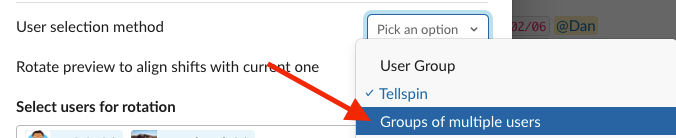
User selection method dropdown with Groups of multiple users highlighted Under How many multi user shifts do you want?, choose the number of distinct groups in the rotation.
Add the people for each shift. A shift can hold one or more users, and the same person may appear in more than one shift.
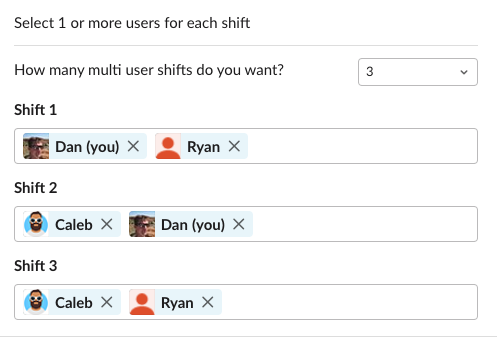
Three multi-user shifts, each containing two people Click Save, then finish the schedule's rotation frequency and contact method as usual.


How Handoffs Work in This Mode
Each shift is a unit. At every handoff the schedule's user group is replaced with all the members of the next shift. With three shifts of two people on a weekly rotation:
- Week 1: Shift 1 (Dan and Ryan) is on-call.
- Week 2: Shift 2 (Caleb and Dan) is on-call.
- Week 3: Shift 3 (Caleb and Ryan) is on-call.
- Week 4: back to Shift 1.
The preview under the schedule lists all members of each upcoming shift. If a change puts the wrong shift on-call today, click Rotate Preview in the Select Users modal to align the rotation before saving.
Verifying the User Group
After saving, mention the schedule's handle in a channel. Everyone in the current shift should be notified.
Related
- How to have multiple people on-call simultaneously – comparing this option with Schedule Triage
- How to rotate between entire user groups – rotating between teams rather than pairs