
How to Have Multiple People On-Call Simultaneously
How Tellspin Rotations Work
By default a Tellspin schedule puts one person on-call per shift. If you need two or more people at once, such as a primary/secondary pair, paired support, or several teams responding together, Tellspin offers two approaches.
Method 1: Groups of Multiple Users (Simple)
Use this when the same fixed set of people should always be on-call together, all drawn from one team roster. For example, Alice and Bob cover week one, then Charlie and Dan cover week two.
How to Set It Up
From the Tellspin App Home, click New Schedule, or Edit an existing schedule and click Edit Users.
In the Select Users modal, set User selection method to Groups of multiple users.
Under How many multi user shifts do you want?, choose how many groups are in the rotation.
Add the people for Shift 1, Shift 2, and so on. Each shift can hold one or more users.
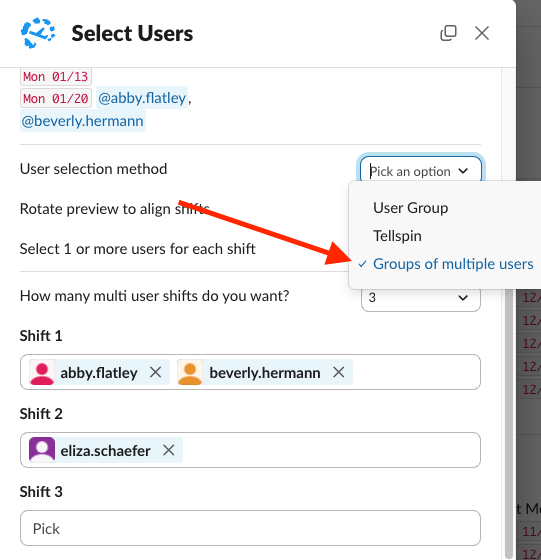
Select Users modal with Groups of multiple users selected and two people in Shift 1 Click Save. The schedule's user group now contains every member of the current shift.

Prefer to keep one flat list of people and have Tellspin pair them up automatically (two at a time, three at a time)? Email support@tellspin.com and ask for Number of users per shift to be enabled in your Select Users modal; it rotates through the list in groups of that size without you assigning shifts by hand.
For a fuller walkthrough, see setting up a rotation with multiple people on-call.
Method 2: Combining Schedules with Schedule Triage (Advanced)
Use this when the people on-call come from separate, independently rotating schedules, such as a primary rotation and a secondary rotation, or several teams' on-call schedules. Schedule Triage creates one handle that always contains the current on-call person from each source schedule.
Schedule Triage is available on the Business Plan or above. You can upgrade from the Tellspin App Home.
Step-by-Step: Setting Up a Multi-Person On-Call Handle
- Create the source schedules first, for example
Primary On-CallandSecondary On-Call, each with its own rotation. - In the Tellspin App Home, click New Schedule Triage.
- Under Select schedules to include, pick the schedules to combine.
- Choose a contact method for the combined handle, such as a new user group
escalation-group, and save.
Now mentioning @escalation-group notifies both the current primary and the current secondary. When either source schedule hands off, the combined handle updates automatically.
Verifying the Triage
In the App Home the triage shows its handle, the combined On-call list, and each source schedule with its own on-call user. Mention the handle in a channel to confirm the right people are notified. Full details in combining schedules with Schedule Triage.
Which Method Should I Use?
- Groups of multiple users – simple, fixed pairings from one roster; everyone in a shift rotates together.
- Schedule Triage – independent rotations combined into one handle; best for primary/secondary, follow-the-sun, or multi-team escalation.
- Multiple user groups – a third option when you want to rotate between whole teams rather than have several people on at once. See rotating between user groups.
Related
- Schedule Triage overview