
Creating Advanced Schedules (Weekdays-Only, Hourly)
Overview of Schedule Customization
Beyond simple daily and weekly rotations, Tellspin can run schedules that are only active on certain days or that hand off several times a day. All of these options live under When do you want to rotate? in the schedule editor.
How to Create a Weekdays-Only Schedule
For a business-hours rotation that is inactive on Saturday and Sunday:
- From the Tellspin App Home, click New Schedule, or Edit an existing schedule.
- Set Rotation frequency to Daily (or Weekly if one person covers the whole week).
- Set the Rotation hour for the handoff.
- Under Customization (optional), check Deactivate on weekends.
- Add your users and save.
Deactivate on weekends is what makes the schedule inactive. A frequency that merely skips weekend handoffs leaves Friday's person on-call until Monday. See the weekdays-only guide for details on what happens while the schedule is deactivated.
How to Create a Weekends-Only Schedule
For a separate rotation that only covers the weekend:
Open the schedule editor.
Set Rotation frequency to Weekends Only.
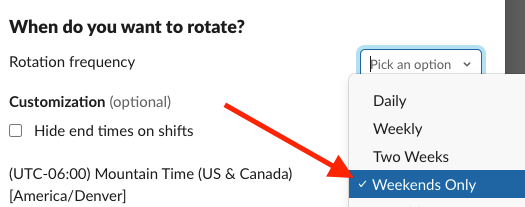
Rotation frequency menu with Weekends Only selected Add your users and save.

The schedule is active Saturday and Sunday and rotates to the next person each weekend. During the week the user group is disabled. See the weekends-only guide.
How to Set Up an Hourly Rotation
For teams that need several handoffs within a day:
- Open the schedule editor.
- Choose an hourly Rotation frequency and set how many hours each shift lasts, for example
12for two shifts a day or8for three. - Set the start date and time of the first handoff.
- Add your users in the order they should rotate and save.
Other Preset Frequencies
The Rotation frequency menu also includes Two Weeks and specific weekday patterns such as Tuesday–Thursday and Monday/Tuesday/Thursday/Friday. If the pattern you need isn't listed, email support@tellspin.com.
Previewing Your Custom Schedule
After saving, check the preview under the schedule in the Tellspin App Home. It shows the shift boundaries, the user order, and a notice when the schedule is deactivated. A weekends-only schedule, for example, shows Disabled on weekdays and one Saturday–Sunday shift per weekend:

Common Questions
What happens on days my schedule is disabled?
Nobody is on-call, so Tellspin disables the schedule's Slack user group (Slack doesn't allow empty user groups) and skips shift reminders until the next active shift.
Can I combine a weekday and a weekend schedule?
Yes. Create one schedule for weekdays and another for weekends, then use Schedule Triage to combine them into a single 24/7 handle.
Can I have more than one person per shift?
Yes. See setting up a rotation with multiple people on-call.