
How to Combine Multiple On-Call Teams with Schedule Triage
What is Schedule Triage?
Schedule Triage combines the people currently on-call across several Tellspin schedules into one Slack handle. Each source schedule keeps its own rotation; the triage handle simply mirrors whoever is on-call in each of them at that moment.
Schedule Triage is available on the Business Plan or above. You can upgrade from the Tellspin App Home.
Common Use Cases
- Primary and secondary: combine
@primary-oncalland@secondary-oncallinto one@support-oncallhandle so a single mention reaches both people. - Multi-team incidents: merge
@backend-on-call,@frontend-on-call, and@api-on-callinto one@incident-responsehandle. - 24/7 coverage: combine a weekdays-only schedule and a weekends-only schedule so the combined handle always has someone in it.
Prerequisite: Create the Source Schedules First
Schedule Triage only combines schedules that already exist. Create each team's schedule as usual (for example, "Backend On-Call" and "Frontend On-Call") before creating the triage.
Creating a Schedule Triage
Open the Tellspin App Home in Slack.
Under Choose an option to get started, click New Schedule Triage.
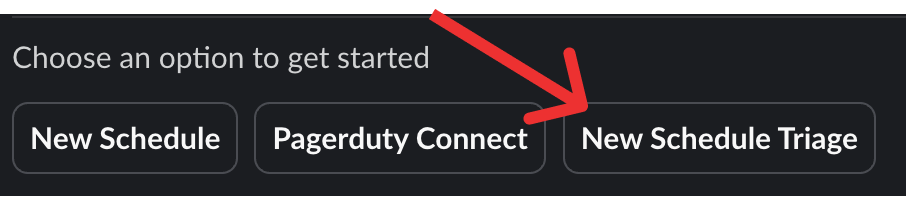
New Schedule Triage button on the Tellspin App Home In the Select schedules to include field, pick each schedule you want to combine. Schedules are listed by their handle (for example
@frontend-on-call).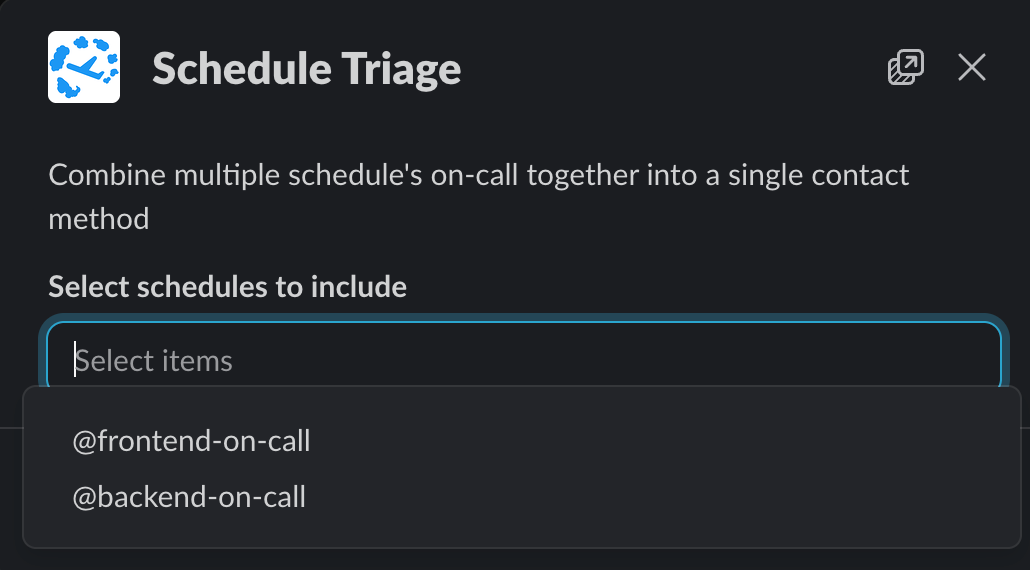
Selecting the schedules to include in a triage Choose the contact method for the combined schedule, such as a new user group handle (for example
combined), and save.


How the Combined Handle Stays Up to Date
The App Home lists the triage with its handle, the combined on-call users, and each source schedule underneath it:

Whenever a source schedule hands off, or an override changes who is on-call in it, the triage handle's membership updates automatically. You never edit the triage's members directly; change the source schedule instead.
Related
- Schedule Triage overview
- How to have multiple people on-call simultaneously
- How to rotate between entire user groups (a different feature: the rotation itself steps through user groups)