
Troubleshooting PagerDuty and OpsGenie Sync Issues
Symptoms of a Sync Problem
You might have a sync issue between Tellspin and PagerDuty or OpsGenie if you notice any of the following:
The on-call person in your Slack user group is incorrect or doesn't update at the handoff time.
The schedule displayed in the Tellspin App Home in Slack does not match the schedule in PagerDuty or OpsGenie.
Your on-call user group in Slack is empty, even though someone is on-call in the source schedule.
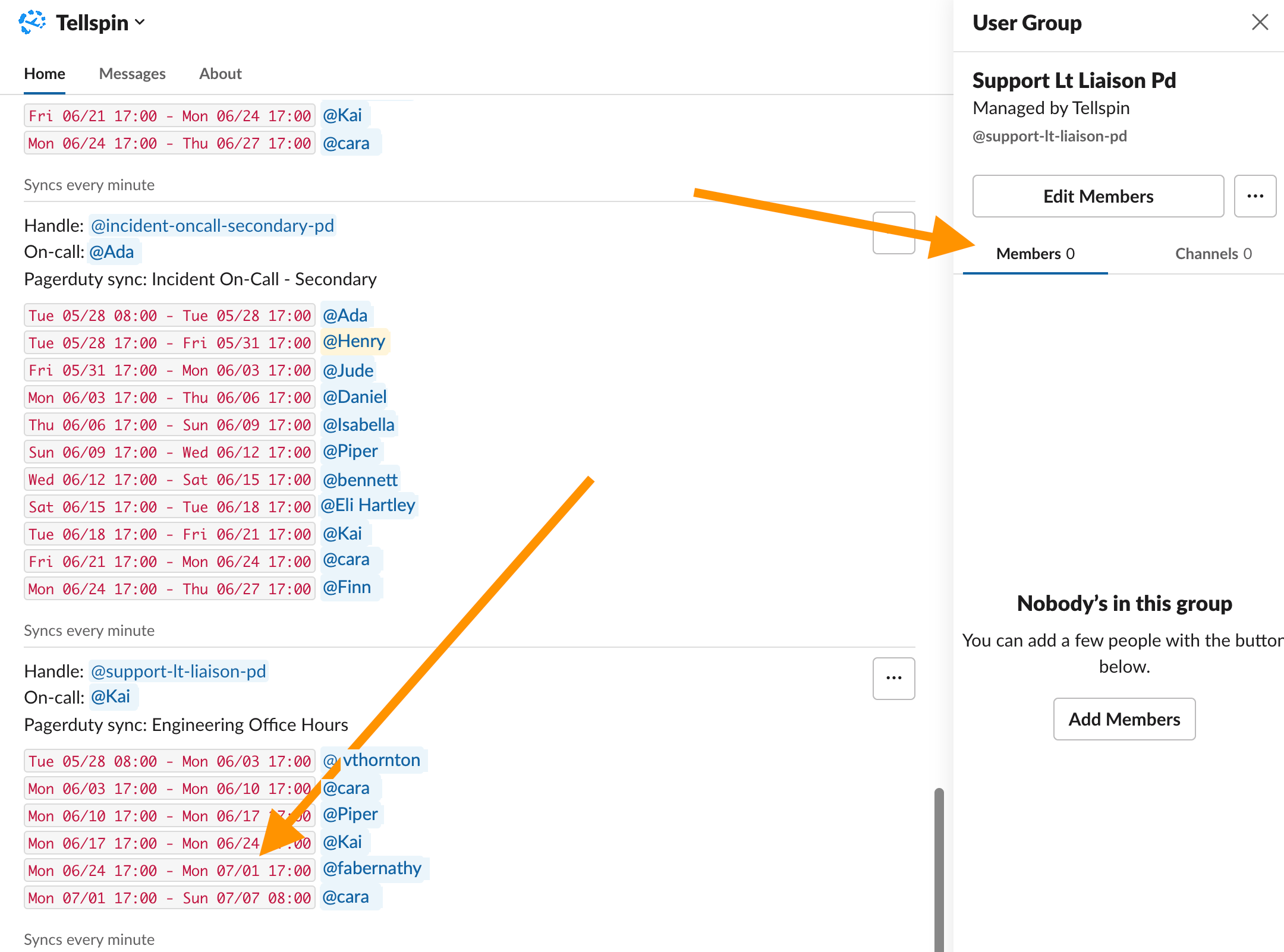
Tellspin shows an on-call user for a PagerDuty-synced schedule while the Slack user group has no members Tellspin shows an error message related to the integration on its App Home page.

Common Causes for Sync Failures
Sync problems are typically caused by a configuration or permission issue. Here are the most common reasons:
- The PagerDuty connection was revoked. This is the most common cause reported to support. It usually happens when the PagerDuty account of the person who originally clicked Pagerduty Connect is deactivated (they left the company), though tokens occasionally expire for other reasons. Every schedule linked through that connection stops updating at once.
- The Slack user who created the schedule was deactivated. Tellspin updates the Slack user group using that person's authorization. If they leave Slack, the group stops changing even though PagerDuty is fine.
- No escalation policy. PagerDuty only reports who is on-call for schedules attached to an escalation policy. Tellspin shows an error that nobody is on-call from PagerDuty.
- Mismatched user emails. Tellspin maps PagerDuty/OpsGenie users to Slack users by email; a user whose emails differ, or who was added to PagerDuty after the link was made, needs a manual mapping.
- Restricted Slack users. Single-channel and multi-channel guests can't be members of Slack user groups, so a guest who comes on-call leaves the group empty.
- OpsGenie API key lacks Read access, or was regenerated.
How to Fix PagerDuty Sync Issues
Follow these steps to resolve common PagerDuty sync problems.
- Reconnect PagerDuty. In the Tellspin App Home, click Pagerduty Connect and sign in to PagerDuty. Reconnecting restores every linked schedule and its reminders; nothing has to be recreated. If the App Home only offers New Pagerduty Link (Tellspin still believes the old connection is valid) but schedules aren't updating, email support@tellspin.com to have the stale token cleared, then reconnect.
- Sign in with a PagerDuty service account rather than a personal one if you can. The integration then survives people leaving the company.
- Check the escalation policy. In PagerDuty, make sure the schedule is attached to an active escalation policy, then wait a minute for the next sync.
- Check user mapping. If the App Home shows the right person but the user group is empty or wrong, open the schedule's three-dot menu, click Edit, then Edit Users next to Change User Mappings, fill in any PagerDuty user without a Slack user, and Save. Details in the PagerDuty user mapping guide.
- If the schedule's creator left Slack, email support@tellspin.com with the schedule's handle and the Slack user who should own it. Support moves the schedule to that user's authorization and runs a manual sync.
Tellspin checks PagerDuty every minute and only touches the Slack user group when PagerDuty's on-call user changes. It doesn't watch the Slack group for manual edits, so editing the group by hand in Slack is not a test. To test the sync, create a short override in PagerDuty (five minutes is enough): the user group should switch to the override user and back again when it expires.
How to Fix OpsGenie Sync Issues
Follow these steps for issues with your OpsGenie integration.
- Reconnect Your OpsGenie Account: Just like with PagerDuty, reconnecting can refresh your authentication token.
- Open the Tellspin App Home in Slack.
- Click the OpsGenie Connect button (it reads New OpsGenie Link once a connection exists).
- Follow the prompts to re-enter your API key.
- Verify API Key Permissions: In your OpsGenie settings, confirm that the API key provided to Tellspin has the Read permission enabled. It does not require Write, Create, or Delete permissions.
- Check User Mapping: Ensure that every user in your on-call schedule has a Slack account with the same email address used in their OpsGenie profile. Also, confirm that none of the on-call users are guest or restricted accounts in your Slack workspace.
Verifying the Sync is Active
Once you've taken the troubleshooting steps, you can confirm the sync is working:
Check the App Home: Open the Tellspin App Home and view the schedule. The current on-call user should match PagerDuty or OpsGenie, with upcoming shifts listed—for example:
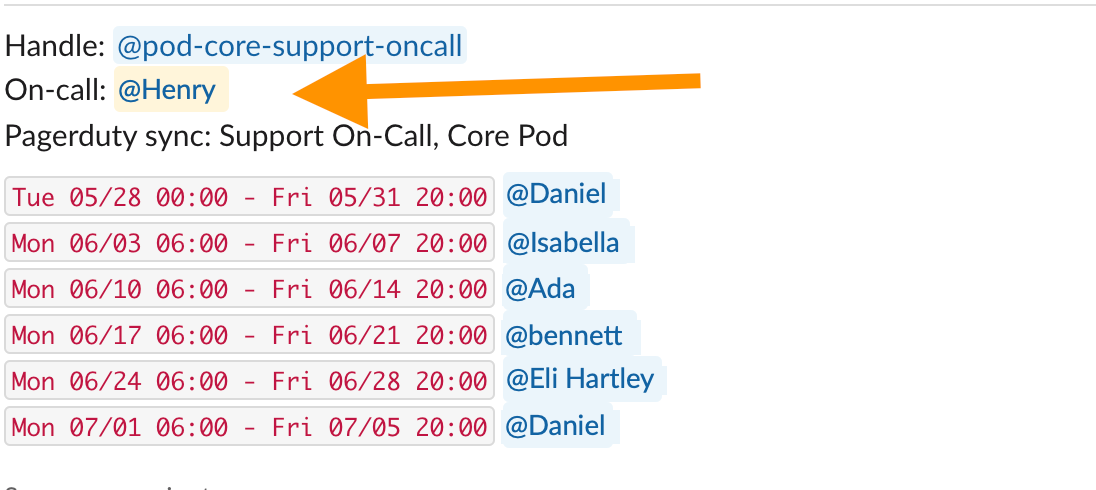
PagerDuty-synced schedule in the App Home showing the current on-call user and upcoming shifts Test the User Group: Mention the user group handle (e.g.,
@dev-oncall) in a Slack channel. The correct on-call user should be notified.

Still Stuck?
If your sync issues persist after following these steps, please contact our support team. Email support@tellspin.com and include the following information:
- Your Slack workspace name or ID.
- The name of the Tellspin schedule that is failing, and whether the person who set up the integration or created the schedule has since left.
- A screenshot of the schedule in the Tellspin App Home.
- A screenshot of the corresponding schedule in PagerDuty or OpsGenie for the same time period.