
Troubleshooting PagerDuty and OpsGenie Sync Issues
Symptoms of a Sync Problem
You might have a sync issue between Tellspin and PagerDuty or OpsGenie if you notice any of the following:
- The on-call person in your Slack user group is incorrect or doesn't update at the handoff time.
- The schedule displayed in the Tellspin App Home in Slack does not match the schedule in PagerDuty or OpsGenie.
- Your on-call user group in Slack is empty, even though someone is on-call in the source schedule.
PagerDuty on-call shown but linked Slack user group empty. - Tellspin shows an error message related to the integration on its App Home page.

Common Causes for Sync Failures
Sync problems are typically caused by a configuration or permission issue. Here are the most common reasons:
- Invalid or Expired API Key: The API token used to connect Tellspin to PagerDuty or OpsGenie may have been revoked or expired.
- Incorrect API Key Permissions: The API key may not have the necessary 'Read' permissions for schedules.
- PagerDuty Escalation Policy: PagerDuty schedules must be associated with an Escalation Policy for the API to correctly report who is on-call.
- Mismatched User Emails: The email address for a user in Slack must exactly match their email address in PagerDuty or OpsGenie for Tellspin to map them correctly.
- Restricted Slack Users: If an on-call user is a Single-Channel or Multi-Channel Guest in Slack, Tellspin cannot add them to a user group, causing the sync to fail for that user.
How to Fix PagerDuty Sync Issues
Follow these steps to resolve common PagerDuty sync problems.
- Check the Escalation Policy: In PagerDuty, ensure that the schedule you are syncing is linked to an active Escalation Policy. Tellspin relies on this association to determine the current on-call user.
- Reconnect Your PagerDuty Account: An expired or revoked token is a frequent cause of sync failure. Re-establishing the connection can resolve this.
- Open the Tellspin App Home in Slack.
- Click the PagerDuty Connect button.
- Follow the prompts to re-authenticate with your PagerDuty account.
- Verify API Key Permissions: When generating a PagerDuty API key for Tellspin, ensure it has read-only access to schedules, users, and escalation policies.
How to Fix OpsGenie Sync Issues
Follow these steps for issues with your OpsGenie integration.
- Reconnect Your OpsGenie Account: Just like with PagerDuty, reconnecting can refresh your authentication token.
- Open the Tellspin App Home in Slack.
- Click the OpsGenie Connect button.
- Follow the prompts to re-enter your API key.
- Verify API Key Permissions: In your OpsGenie settings, confirm that the API key provided to Tellspin has the Read permission enabled. It does not require Write, Create, or Delete permissions.
- Check User Mapping: Ensure that every user in your on-call schedule has a Slack account with the same email address used in their OpsGenie profile. Also, confirm that none of the on-call users are guest or restricted accounts in your Slack workspace.
Verifying the Sync is Active
Once you've taken the troubleshooting steps, you can confirm the sync is working:
Check the App Home: Open the Tellspin App Home and view the schedule. The current on-call user should match PagerDuty or OpsGenie, with upcoming shifts listed—for example:
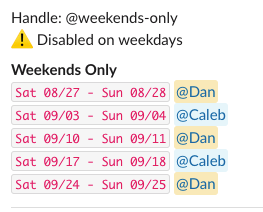
Tellspin Home with current on-call and upcoming shifts listed. Test the User Group: Mention the user group handle (e.g.,
@dev-oncall) in a Slack channel. The correct on-call user should be notified.

Still Stuck?
If your sync issues persist after following these steps, please contact our support team. Email support@tellspin.com and include the following information:
- Your Slack Workspace ID.
- The name of the Tellspin schedule that is failing.
- A screenshot of the schedule in the Tellspin App Home.
- A screenshot of the corresponding schedule in PagerDuty or OpsGenie for the same time period.